
Creating a Multi-Node ELK Stack
Previously I had written a guide on Creating a Single-Node ELK Stack, covering what to do when you want create and utilize The Elastic Stack (also formally ELK) on a limited capacity, single-node basis. When assisting my roommate in creating an ELK stack of his own, I realized I had not yet described the process of creating a “multi-node” stack and the additional configurations required. These “multi-node” stacks are what you will most likely see in production environments; more customizable, reliable, and efficient than “single-node” stacks.
This guide will walk you through the setup for a 5-node (3 ES, 1 LS, 1 KB) ELK Stack, explaining the configurations required for these nodes to communicate.
Requirements
To follow this guide exactly, you will need access to the following criteria:
- A virtualization platform (vCenter, VMware Workstation, etc.) to host five different nodes
- Ubuntu 18.04.2 Server (ISO Download)
- OPTIONAL: Endpoints configured to send logs via Winlogbeat to Logstash
Configure your nodes
While ELK is a fully customizable platform, I would recommend your nodes have the following MINIMUM recommended specs:
Elasticsearch – 1 CPU, 4GB RAM, 100GB HDD
Logstash – 4 CPUs, 6GB RAM, 100GB HDD
Kibana – 1 CPU, 2GB RAM, 30GB HDD
Below you will see my configuration utilizing vCenter; with 3 ES nodes (aries), 1 LS node (gemini), and 1 KB node (phoenix):

Once you have your resources allocated and your node up and running ensure that your OS is up-to-date:
sudo apt-get update

sudo apt-get upgrade
SETTING UP ELASTICSEARCH
The following shows how to correctly configure Elasticsearch for ONE node. You will need to repeat this process for each Elasticsearch node you want to have while making the appropriate changes.
As with a single-node installation of ELK, Java is necessary for both Elasticsearch and Logstash to run. Before installing, check to see if Java is already present on your machine:
java -versionIf Oracle’s Java is not installed, or is not version 8, install it by first adding it’s repository:
sudo add-apt-repository ppa:webupd8team/javaGrab and Install the Java 8 package using this new repository:
sudo apt-get update

sudo apt-get install oracle-java8-installer
Check your Java version again. You should now see that you are running Java 8.
To install any of Elastic’s products, we first need to grab their PGP signing key down to our VM.
wget -qO - https://artifacts.elastic.co/GPG-KEY-elasticsearch | sudo apt-key add -

sudo apt-get install apt-transport-https
Make sure your system is fully up-to-date and install Elasticsearch’s Debian package.
echo "deb https://artifacts.elastic.co/packages/6.x/apt stable main" | sudo tee -a /etc/apt/sources.list.d/elastic-6.x.list

sudo apt-get update && sudo apt-get install elasticsearch
Navigate to the newly installed Elasticsearch directory (/etc/elasticsearch) to modify its configuration file, elasticsearch.yml. Root access will be required to access this directory:
sudo su
cd /etc/elasticsearch

nano elasticsearch.yml
From here you have a couple of steps:
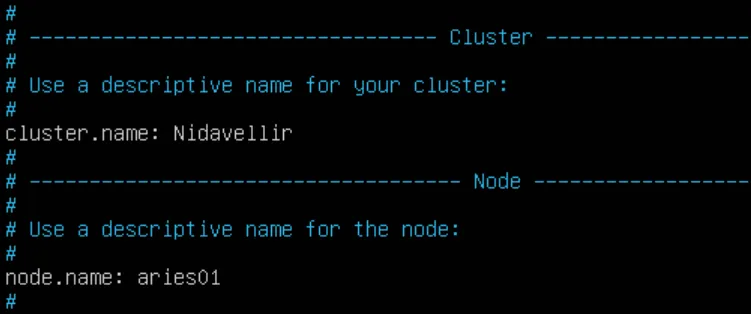
- If you wish to name your cluster, as I have already done below, remove the ”#” from the beginning of the line with
cluster.nameand add your own custom name. Don’t forget to also name your node to be recognizable in Kibana later.
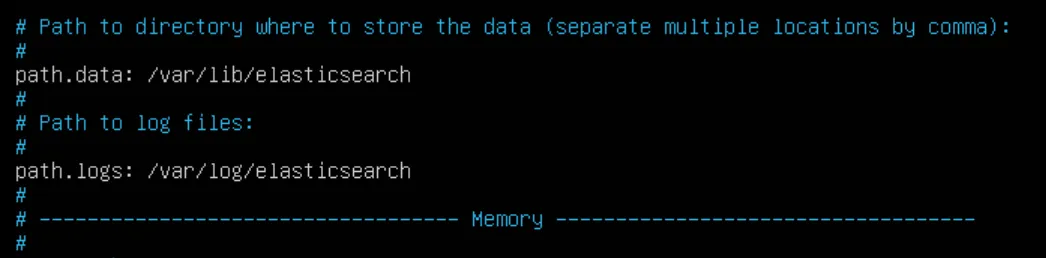
- Take note of the
path.logsvariable — this is the path where all your log files associated with Elasticsearch will reside. You can change this to be anywhere you want.
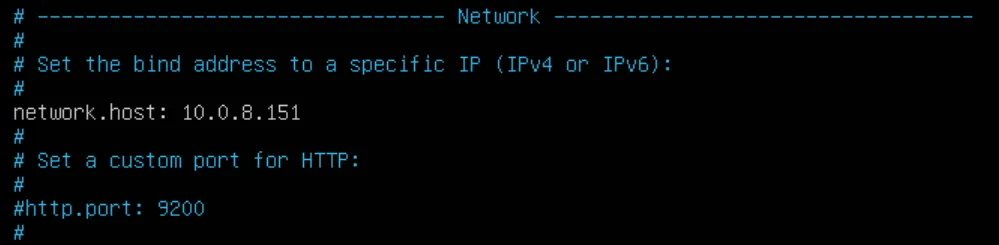
- Navigate to the Network section and look for
network.host– this is used to identify your current node. Un-comment out this line if necessary and add the IP address of your current node here:
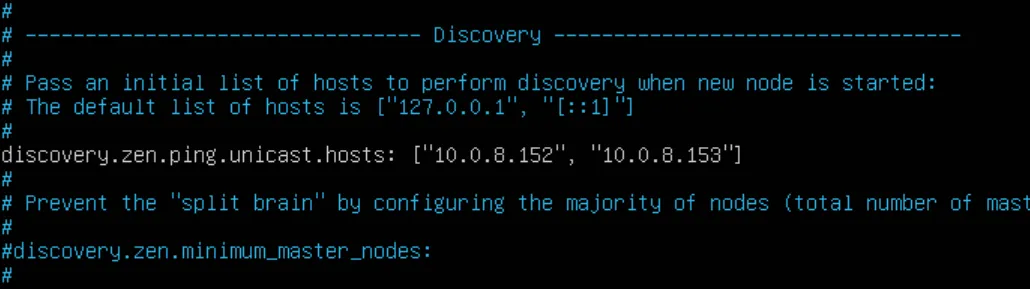
- Navigate to the Discovery section and look for
discovery.zen.ping.unicast.hosts– this is used to identify other Elasticsearch nodes to communicate with. Un-comment out this line if necessary and add the IP addresses of your other desired Elasticsearch nodes here:
Save the file and exit.
JVM Heap Size
We are going to adjust the JVM settings for Elasticsearch to take full advantage of the resources you gave it. JVM, or Java Virtual Machine, is the platform that both Elasticsearch and Logstash operate off of. I am not going to pretend to understand exactly how it functions, however editing the options file for JVM functionality will allow you to maximize these services’ potentials.
To do this, edit the jvm.options file within the /etc/elasticsearch directory:
nano jvm.optionsBased on recommendation from Elastic themselves, you should NEVER allocate more JVM heap size than HALF of the total allocated RAM to your host machine. In the case of this guide, I allocated 4GB RAM to my Elasticsearch nodes. So, I am going to edit this file by only allocating a min/max JVM heap size of 2GB. If I had 8GB total instead, I would do a min/max JVM heap size of 4GB – so on and so forth:
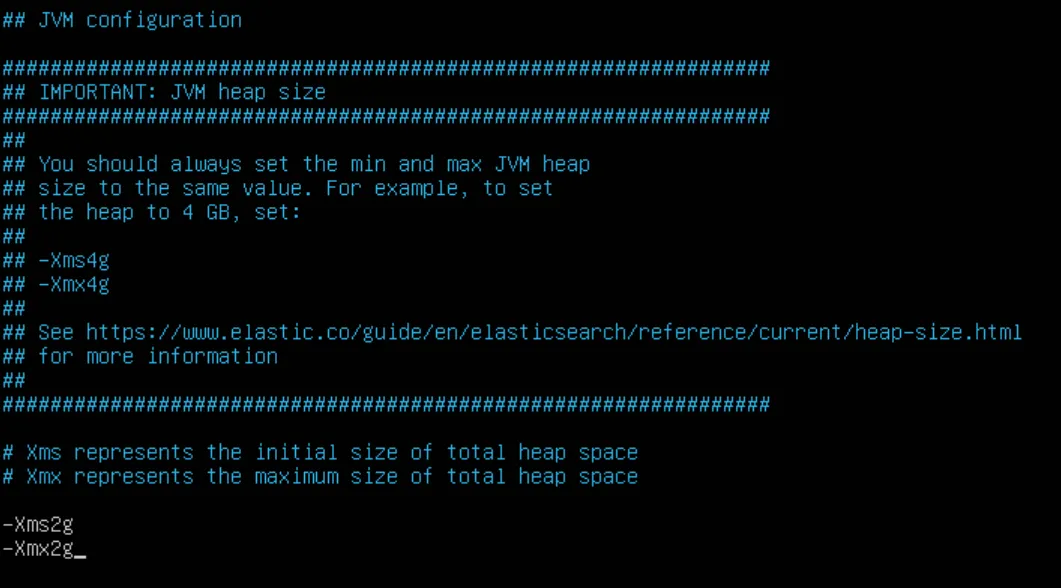
Save and exit the file.
Now that Elasticsearch is configured to how you want, enable and start the service and confirm that it is running:
systemctl enable elasticsearch

systemctl start elasticsearch
systemctl status elasticsearch
REPEAT this process until all your Elasricsearch nodes are configured and the service is confirmed to be functioning.
SETTING UP KIBANA
Kibana is the simplest and quickest to setup, only requiring a few steps.
Start by installing Kibana to its dedicated node using the same repository as Elasticsearch:
echo "deb https://artifacts.elastic.co/packages/6.x/apt stable main" | sudo tee -a /etc/apt/sources.list.d/elastic-6.x.list

sudo apt-get update && sudo apt-get install elasticsearch
sudo apt-get update && sudo apt-get install kibanaOnce installed, navigate to /etc/kibana and edit the kibana.yml file:
cd /etc/kibana

nano kibana.yml
Edit the server.host section and add your Kibana node’s IP Address:
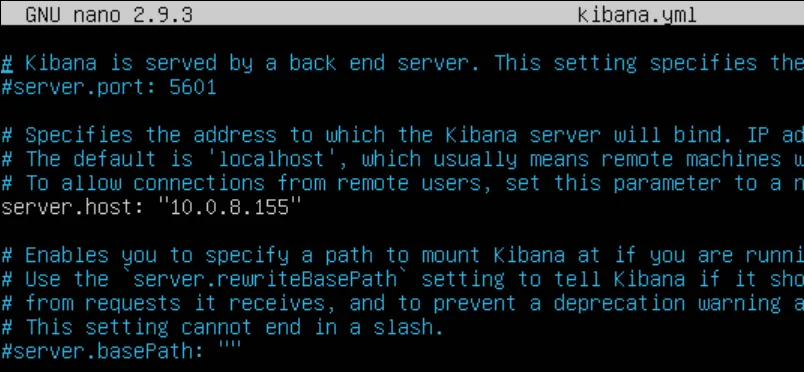
Scroll down until you see elasticsearch.hosts – this is used to tell Kibana the IP addresses of your Elasticsearch nodes to query. Add their IP addresses and ports here:

Save the file and exit.
Now that Kibana is configured, enable and start the service and confirm that it is running:
systemctl enable kibana

systemctl start kibana
systemctl status kibana
SETTING UP LOGSTASH
In my opinion, Logstash is one of the more complex of Elastic’s services and this is where most of the potential problems may occur. This is due to how much goes on concerning this service, coinciding with the delicate role it plays in filtering logs it is receiving from endpoints.
First, ensure Java is installed on the node you wish to place Logstash on. This process is the same as with Elasticsearch and you can just re-follow those steps.
Next, install Logstash to its dedicated node using the same repository as both Elasticsearch and Kibana:
echo "deb https://artifacts.elastic.co/packages/6.x/apt stable main" | sudo tee -a /etc/apt/sources.list.d/elastic-6.x.list

sudo apt-get update && sudo apt-get install elasticsearch
sudo apt-get update && sudo apt-get install logstashNavigate to /etc/logstash and edit the logstash.yml file:
cd /etc/logstash

nano logstash.yml
Give your node a name to be distinguished in Kibana:
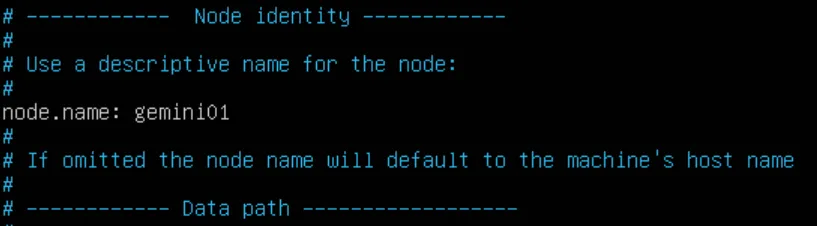
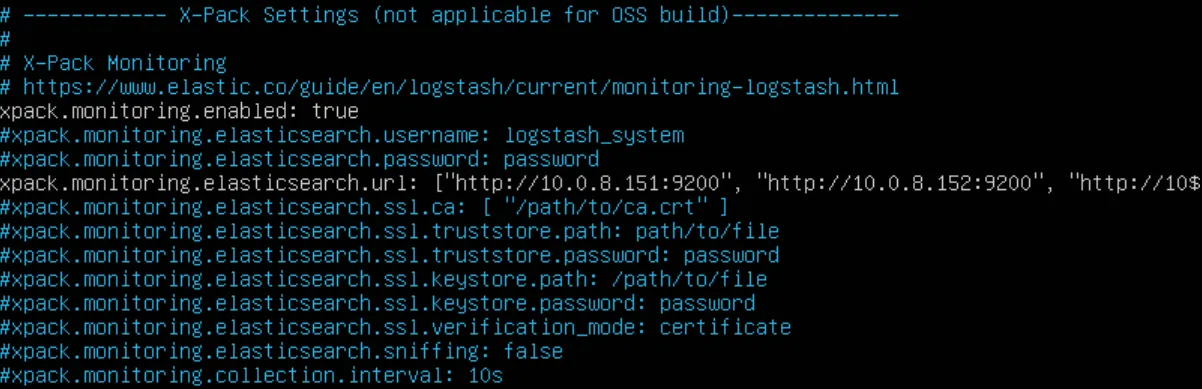
OPTIONAL: To view Logstash stats under the Monitoring tab in Kibana, scroll to the bottom of the file and enable X-Pack Monitoring by un-commenting the following lines and adding in the IP addresses of your Elasticsearch nodes:
JVM Heap Size
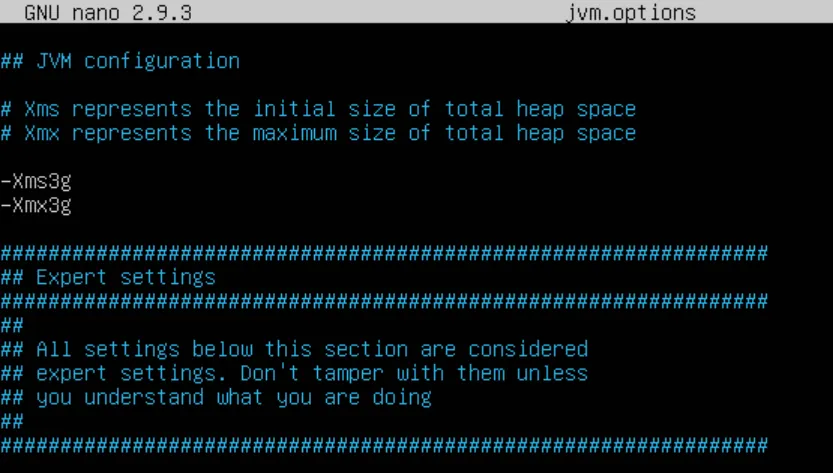
Just as with Elasticsearch, we can configure JVM Heap size to match HALF of the resources we allocated to the host machine. In this guide, I used 6GB of RAM for Logstash, so I will be allocated a min/max JVM Heap size of 3GB.
Edit the jvm.options file within the /etc/logstash directory:
nano jvm.optionsEdit the file accordingly:
Logstash Pipelines
Logstash operates using input and output filters, otherwise known as a log pipeline. For this guide, we are just going to use one simple input/output filter that is specific for grabbing all data being sent by the Beats data shipper known as Winlogbeat to get Logstash going. There are a plethora of different filters out there, and you can always make your own per log type (Security, System, Application, etc.) to help better organize the information Kibana will be seeing.
Go to the /etc/logstash/conf.d directory and create a simple beats input filter and enter the following. Mine is called 02-beats-input.conf:
cd /etc/logstash/conf.d

nano 02-beats-input.conf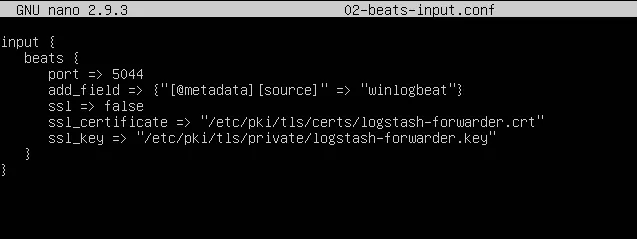
Save and exit the file.
Create the output file now and enter the following. Mine is called 50-beats-output.conf:
nano 50-beats-output.conf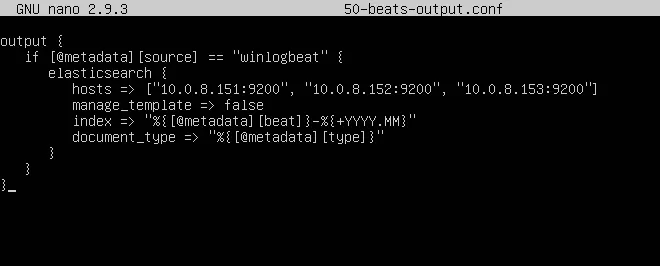
Now that Logstash is configured, enable and start up the service and check to ensure it is running:
systemctl enable logstash

systemctl start logstash
systemctl status logstash
If you run into troubles, tail your Logstash logs and troubleshoot from there:
tail /var/log/logstash/logstash-plain.logCONFIGURING KIBANA
Now that you have everything running and setup, navigate to your Kibana web interface by going to your Kibana node’s IP over port 5601 in your web browser. If you setup NGINX, you don’t need to specific a port but you will need to log in with your configured credentials.
Once looking at Kibana, navigate to Management → Index Patterns → Create Index Pattern. Not every index shows by default, so this is where all incoming indices will be shown to then be added to Kibana for viewing. In the screenshot below, you will see all of my indices that I have already configured for my home environment through the help of @Cyb3rWard0g’s HELK filters for Logstash. You should see your winlogbeat index here:
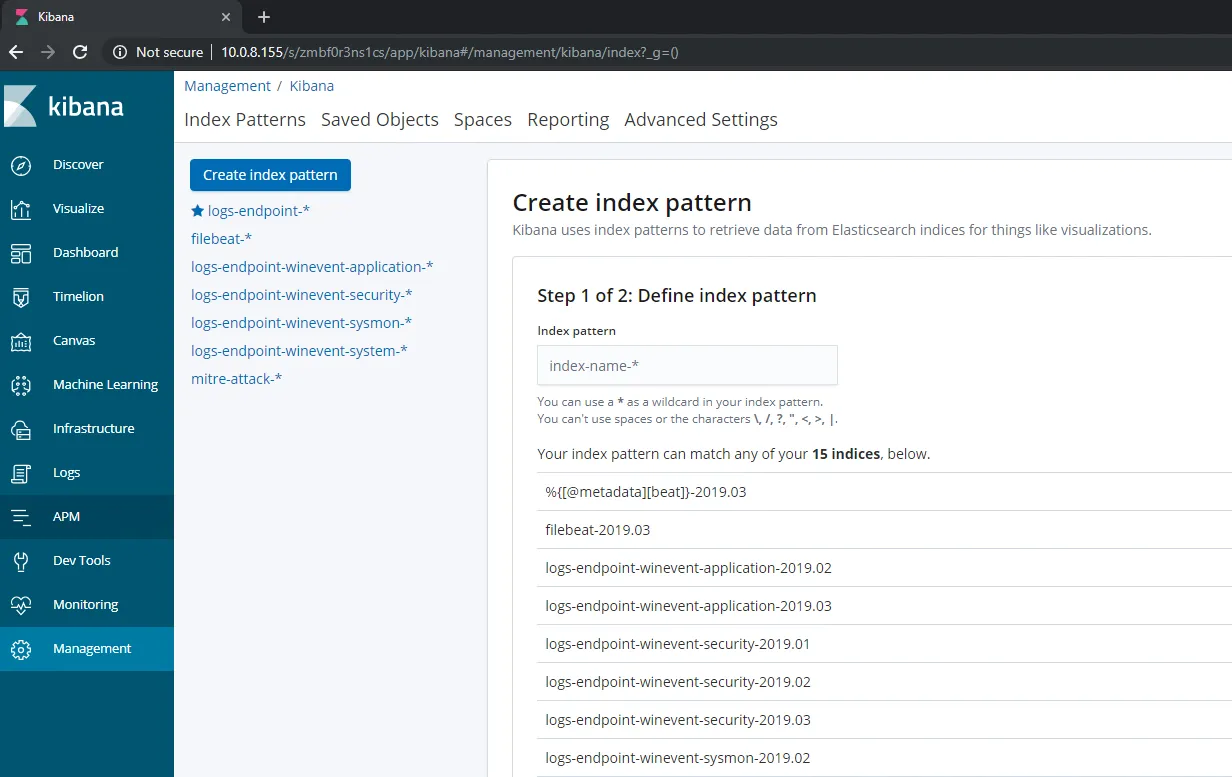
Add the index by utilizing the search field. Type the name of the index but do NOT complete it with the month and day. This will create an index in Kibana that will hold ALL Winlogbeat indices – regardless of month – to view in one place on the Discover page. When selected, filter by @timestamp and complete setup.
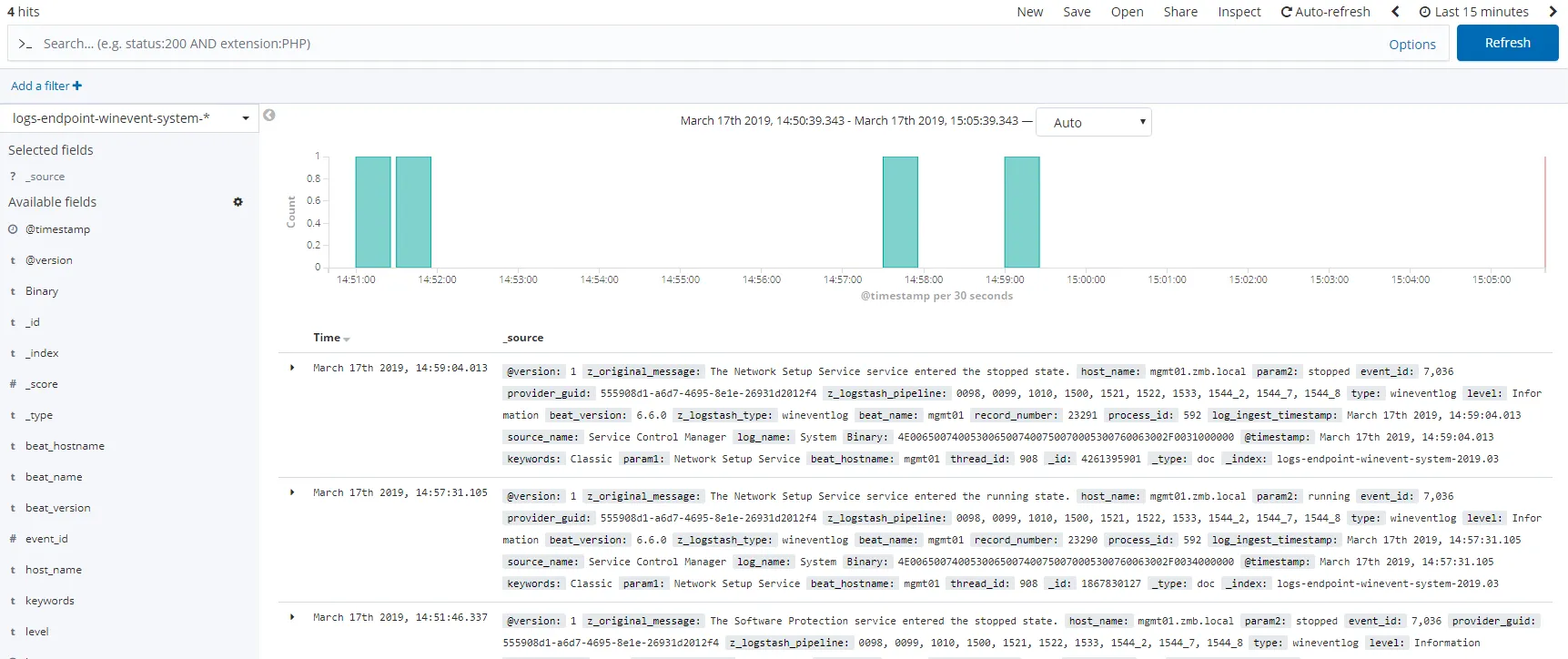
Click the Discover tab and you should see logs like I do for my index below:
Congrats!
You now have a fully functional, multi-node ELK stack. Depending on how you followed the guide, you may have a stack without logs yet, or you may have a stack configured with NGINX and SSL currently ingesting logs. Either way, you should have a solid baseline to move forward from.
Steps to go from here…
-
Configure SSL
-
Configure NGINX
-
Configure Winlogbeat